Category: IIS

  • Keeping Your Information Safe

    A phishing attempt is one of the common types of cybersecurity threats we face daily. Anyone with an email account is a target for phishing scammers. The primary goal of phishing is to trick you into providing your credentials such as passwords or other sensitive information. In other cases, scammers may impersonate someone you know and try to convince you to purchase gift cards, asking you to provide the card number. Scammers and hackers are consistently finding new ways to make their messages more convincing, making even the most careful among us a victim by clicking on a link, opening an attachment, or simply responding to a message. Because these actions can have dire consequences, it is important to remain vigilant, use common sense, and understand the best practices that can keep your information safe.

    To combat phishing attempts, the OIT has created a website, Phish Bowl, consisting of helpful tips to identify and avoid phishing scams, including links to the Cybersecurity and Infrastructure Security Agency (CISA) alerts page, and the SANS Institute’s Security Awareness Tip of the Day. Also included on the Phish Bowl page are a series of brief and entertaining YouTube videos on topics such as passwords, data handling, computer theft, phishing, and ransomware, and more. In just a few minutes per video, you can raise your awareness of crucial security best practices. For more information on how to identify and report phishing messages, please see https://agenda.libraries.rutgers.edu/iis-updates-january-2021/#phishing.

    You are the first line of defense. If you receive a suspicious message, please forward it with Message Details to support@rulhelp.rutgers.edu immediately. We will review your message and report it to OIT, if necessary.

    To further increase security, Rutgers has already required Duo two-step login for Rutgers Connect. Since it has been required for Rutgers Connect logins, cybercriminals have not gained access to a single Rutgers Connect account. Starting on July 1, Duo will be required for all websites and services accessed through Rutgers’ Central Authentication System (CAS) from on campus and off campus, including Box, Canvas, myRutgers, Webex, Zoom, and many others.

    If you have concerns or questions about phishing or the additional Duo requirements, send an email to support@rulhelp.rutgers.edu.
  • Rutgers Connect Recent Changes and Enhancements

    OIT has announced some recent changes and enhancements in Rutgers Connect. We’ve highlighted and described some of them here. Some are already available, while others are currently rolling out to all Microsoft users. Please do not hesitate to contact IIS at support@rulhelp.rutgers.edu if you have questions or comments about these new or enhanced features, or anything in Rutgers Connect.

     Outlook on the web (OWA): Update in Accessing Mail, Calendar, People, and To Do

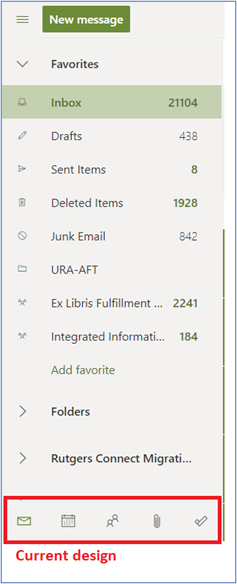
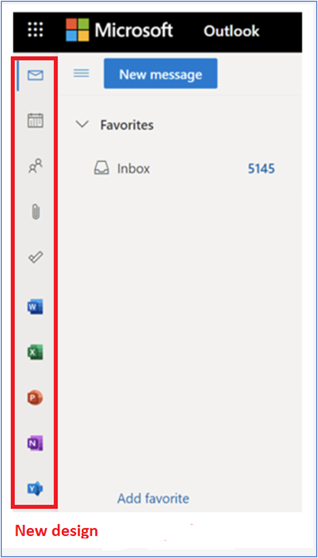
    Microsoft is rolling out a newly designed app bar on the left side of the folder pane that will change how users access Mail, Calendar, People, and To Do. The app bar will make it easier to launch Word, Excel, PowerPoint, and OneNote on the web directly from Outlook on the web.

    OneDrive: 250GB Upload Capability 

    Microsoft is raising the upload file size limit of its OneDrive file storage service from 100GB to 250GB. This improvement will allow users to upload files of up to 250GB into OneDrive, Teams, and SharePoint. Please keep in mind that factors such as bandwidth, location, and network capacity may impact large uploads.

    Microsoft Word: Text Predictions

    Microsoft has begun rolling out a new text prediction feature to speed up the writing of documents written in English. Word will highlight grayed-out predictions when users are writing a document. Suggestions can be accepted using the Tab key or rejected by hitting Escape or continuing to type. The new text predictions feature will be enabled by default but can be disabled if desired. The feature reduces spelling and grammar errors and learns over time to give the best recommendations based on your writing style. Text predictions were previously made available in Outlook on the web where it can also be disabled if desired.

    Microsoft Word: Modern Comments

    Modern Comments, first introduced in the mobile and Web versions of Word, have been improved based on feedback and are now available in Word for Windows and Word for Mac. Enhancements include improved keyboard shortcuts and @mention notifications and will start rolling out to Windows and Mac users in April. Modern Comments offer enriched collaboration coupled with the ability to assign and resolve comments and respond to @mention notifications via email.

    Microsoft Teams: History Menu

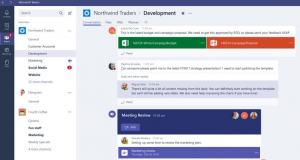
    Microsoft has introduced a history menu in the Microsoft Teams desktop clients that displays a user’s recently visited locations. By hovering over the backward and forward navigation buttons at the top of the Teams client, users will be able to see recently visited locations in Microsoft Teams. The history menu makes it easier to navigate to previous locations, such as nested tabs and documents.

    Teams Meetings: Participants Increased

    Microsoft is increasing the limit of participants and chat size in interactive meetings from 300 to 1,000.

    Microsoft Teams: New File Sharing Experience

    Microsoft is updating the file sharing and access control experience in Microsoft Teams to align with the existing functionality across the other Microsoft 365 applications. When users share a file from within Teams (desktop/web), they will have the option to create sharing links that provide access to people with existing access, people within your organization, and specific people. Before users share a file in a chat and channels, they will be notified if recipients don’t have permission to view the file. The user can change permissions before they share the file (if they have permission to do so). The default file sharing setting for Teams will remain the same and will continue to reflect default permissions in SharePoint, as the two work together.


  • Storing Files in Box – Personal Folder vs Group Folder

    Box is a cloud-based file storage application where students, faculty and staff can securely store, manage, and share files. With an unlimited storage capacity, Box offers a great way to store lots of data and share it with colleagues. However, there are some important distinctions between using a ‘personal share’ and a ‘managed group share.’

    What is the difference between a personal folder and a group folder?

    When you activate your Rutgers Box account, you can begin storing and sharing data right away. When you share a folder from within your Box account with a colleague, that is considered a personal share, because you are the owner of the share.

    When you open a ticket and request a Box folder, that is a managed group share. In this case, users are assigned to have access to the folder, but no user owns the share. If you want users added or removed from the share, you must open a ticket.

    This is an important distinction because if you are sharing data that is part of a personal share, and the owner leaves the University, the data will no longer be accessible. However, with a managed group share, that data will continue to live perpetually, regardless of the status of its members.

    How can I tell if my folder is a personal folder or a group folder?

    Managed group shares are typically enclosed in parentheses. However, you can also verify by doing the following:

    1. Login to your box account (box.rutgers.edu).
    2. Right click on a folder.
    3. Select “More actions.”
    4. Select “Manage collaborators.” If the owner is “Share-RUL,” then it is a managed group share.

    How do I request a group folder?

    Send an email to support@rulhelp.rutgers.edu. We will need you to suggest a folder name and tell us who should have access to the folder, and what permissions you want them to have.
    For more information, visit Rutgers Box Storage Service page in Staff Resources.

  • IIS Updates – January 2021

    Skype for Business Retiring on July 31, 2021
    Effective July 31, 2021, Skype for Business will no longer be provided as part of Rutgers Connect (Office 365).

    Effective July 31, 2021, Skype for Business will no longer be provided as part of Rutgers Connect (Office 365) and a three-phased transition to retirement is already underway. Microsoft Teams, the suggested product for voice and video conferencing in the Office 365 suite is already available to all users and is the replacement product for Skype for Business.

    Phase 1: New Rutgers Connect accounts will no longer have Skype for Business and it has already been removed from users who have never used the product.

    Phase 2: On Monday, February 1, 2021, Skype for Business will be turned off for any user who has not used the product within 90 days.

    Phase 3: On Monday, May 3, 2021, Skype for Business will be turned off for all users.

    OIT advises that these dates are tentative and subject to change. IIS will provide additional notices closer to the dates mentioned to ensure all affected users are prepared for the upcoming changes.

    If you use Skype for Business and have concerns or questions about the transition, please contact IIS at support@rulhelp.rutgers.edu.


    How to Identify and Report Phishing Scams

    Cyber scams targeted at university email accounts are more sophisticated than ever. It’s important to remain vigilant and aware of typical internet fraud in order not to be fooled into clicking on a malicious link, replying to a scam email message, or even making a purchase, supplying identifying information or credit card or bank account numbers to hackers or scammers. The Rutgers Office of Information Technology (OIT) has created Phish Bowl, a comprehensive resource with quick tips to spot and avoid scams, information on latest threats, and other tips.

    What should I do if I receive a suspicious email message?

    If you receive a message that appears to be a scam or phishing attempt, or are simply unsure, please forward the message and the Message Details to support@rulhelp.rutgers.edu and IIS will review them and report it to OIT if necessary.

    What happens next?

    If OIT deems the message to be a scam or otherwise dangerous, they will block the sender from sending additional messages to university members and block any links contained in the message. They will often remove the messages in bulk from all recipients’ mailboxes. Further actions, such as scrambling NetID passwords may also be taken when a user has clicked on a link or attachment or replied to an email message. If you find yourself suddenly unable to access your email account or other resources requiring authentication, this is the cause even if you did not realize that you may have received a scam email message.

    What is Duo and how will it help?

    OIT is implementing a staged rollout of two-factor login using Duo for enhanced security and all Rutgers Connect users who are off campus will have to start using it as of February 3, 2021. Duo will help protect your account by adding a second layer of security beyond your password. Your identity will be verified using a second factor, such as your phone, mobile device, or hardware token, and will prevent anyone but you from logging in even if your password has been compromised.

    If you have concerns or questions about phishing or the transition to Duo, please contact IIS at support@rulhelp.rutgers.edu.


    Help Guides for Web conferencing tools available in the Staff Resources Site

    Rutgers University offers three different web conferencing tools to faculty, staff, and students. Want to learn more about these tools? Take a look at the help guides and other training materials that provide detailed information about choosing the best tool and on best practices for security when using these tools. If you have any questions, send an email to support@rulhelp.rutgers.edu.

  • Zoom: Security Updates, New Help Guides, and Training Resources Available

    New security features introduced by the Office of Information Technology (OIT) make it possible to ensure security and prevent unwanted guests in your Zoom meetings. If you host online meetings using Zoom, please take a few minutes to familiarize yourself with these important updates:

    To assist you in becoming familiar with Zoom and to help answer some of your questions, IIS has compiled some Zoom Help Guides and Training resources. Topics include basic information to get you started with Zoom, FAQs, as well as training documentation and video tutorials.

    If you have questions or need assistance with Zoom, please contact IIS via email at support@rulhelp.rutgers.edu.

  • Alma Analytics Tips: Lifecycle and Status

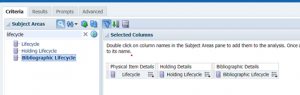
    When creating reports in Alma Analytics, there are a couple of filters or dimensions that you should be using frequently to help you refine the figures you are reporting. Two such dimensions are Lifecycle and Status. Dimensions containing the term Lifecycle filter for records that are active or deleted and dimensions containing the term Status filter for records or transactions that are active, inactive, or contain a specific status. You should search for these terms when creating reports to determine which dimensions are available in each Analytics subject area and then use them regularly to make better reports.

    Lifecycle – The Lifecycle dimensions can be found in Analytics subject areas that provide selections on bibliographic records, such as E-Inventory, Physical Items, and Titles. For example, if you search for Lifecycle in, the Physical Items subject area, you will see Lifecycle at three levels indicating you can filter for active or deleted records at the title, holding, or item level.

    Screenshot of alma analytics showing lifecycle

    Lifecycle options typically are:

    1. Deleted – record has been deleted
    2. In Repository – record has not been deleted

    Status – The Status dimensions are found in almost any Analytics subject area and store the status of the record or transaction such as Item in place or Item not in place, active or inactive, active or completed. There are a variety of statuses related to each subject area and Analytics users should examine them, review the options, and determine whether selections are needed in these dimensions. Some of the more frequently used statuses are:

    1. Loan Status – use this to filter on items actively on loan or not. This dimension is found in the Fulfillment and Fines and Fees subject area and the options are:
      1. Active – loan is current
      2. Inactive – loan is not current
    2. Fines Fees Status – use this to filter on items with active/outstanding fines. This dimension is found in the Fines and Fees subject area and the options are:
      1. Active – fine still outstanding
      2. Closed – fine has been paid or waived
    3. User – Status – use this to filter on users who are active or not. This dimension is found in the Fulfillment, Requests, Fines and Fees, and the Users subject area and the options are:
      1. Active – user record is in Alma and is currently active
      2. Inactive – user record is in Alma but not active
      3. Deleted – user record has been deleted from Alma
    4. Request – Status – use this to filter requests by current status. This dimension is found in Requests and the options are:
      1. Active – request is active and there is an available item to fulfill it
      2. Completed – request is completed
      3. Failed – request has failed.
      4. Ready – request is active but there is no available item to fulfill it
      5. Rejected – Alma staff member canceled an active request
      6. Rejected by Library – request cancelled. The cancellation reason is Canceled at patron’s request.
      7. Rejected by Patron – request cancelled. The cancellation reason is Patron no longer interested.

    More information about dimensions like Lifecycle and Status and others that can be used in each Analytics subject area can be found here. If you have follow-up questions related to this article or need assistance creating a report in Alma Analytics please send a message to exlibris@rulhelp.rutgers.edu.

  • Hosting Virtual Events with Webex

    Thinking of hosting a virtual event and don’t know how to?

    The COVID-19 pandemic has instantly changed how we work and interact with each other. It’s a challenging time for all of us. All in-person meetings, events, and training have been transformed to online, and there are several online collaboration tools available for Rutgers faculty and staff. This article describes how you can schedule an interactive online event using Webex.

    Webex is freely available to all Rutgers faculty and staff. Before you can start using Webex, you must activate your license. Once you have activated your license, you can start scheduling your online event. There are three different solutions available in Webex:

    Webex Meetings Center provides a simpler way to have a face-to-face meeting experience with your colleagues. You can present, share your screen, and collaborate on projects in a centralized space.

    Webex Events Center makes hosting an online event easy. Whether you are hosting a brown bag event or a webinar, you can deliver an interactive presentation with multimedia, along with Chat, Q&A, and polling, to engage your audience. Refer to OIT’s Getting Started with Cisco Webex Events for step-by-step instructions to schedule an event.

     Webex Training Center is suitable for lecture style classes. You can deliver live, interactive sessions to students anywhere, and keep them engaged with hands-on training, tests, and breakout sessions to enhance their learning.

    When you are hosting a Webex event, you can provide additional security by requiring a password. If you specify a password, attendees must provide it to join the event. Webex makes it possible for attendees and panelists to join an event without a license.

    Are you planning a virtual event but not sure how to choose the right solution? Take a look at this Webex Suite Comparison chart. If you still need assistance, please send an email to support@rulhelp.rutgers.edu and help will be on the way!

  • Schedule Meetings More Easily with FindTime

    FindTime is an Outlook add-in that allows you to easily identify and come to a consensus on meeting times. FindTime shows you the dates and times you and your attendees are available based on the free/busy data in Outlook calendars. A poll is created within an email message which is sent to invitees who can vote on their preferred times. Because FindTime is integrated into Office 365, you no longer need to use separate applications, such as Doodle, to poll colleagues for meeting times. Invitees do not need to install FindTime to vote on meeting times, and invitations can be sent to any email address including external addresses.

    FindTime works with Outlook on the Web (OWA), Outlook 2016 (desktop version), and Outlook for Mac. When using it for the first time, you will need to install the add-in and you will be prompted to sign in to authorize its use. More information on FindTime can be found here.

    If you have questions about FindTime, please do not hesitate to contact IIS by phone at 848-445-5896, option 7, or by email at support@rulhelp.rutgers.edu.

  • Planner and Teams in Connect

    The Office of Information Technology has enabled two new Office 365 apps, Planner and Teams, for all Rutgers Connect users. These tools will appear in your Outlook app launcher, aka “waffle.” They work best for users who are members of Office 365 Groups.

    Planner is an application for creating, assigning, and managing tasks. It is useful for collaborating among small groups.

    Teams is a chat-based workspace that integrates all the people, content, and tools that the team needs to be more engaged and effective. It is useful for communicating with team members through messages that require an instant response.

    Every group has its own needs and workstyle, so selecting the best tool is important. This article highlights some of the features available in Planner and Teams.

    plannerPlanner

    • Organize your work
    • Manage tasks
      • Assign user(s)
      • Set due dates
    • Collaborate
      • Communicate with group members
      • Attach project related files
    • Monitor progress
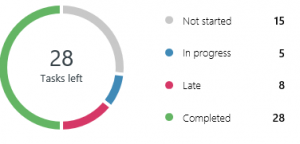
      • Use charts to view progress
      • Get email updates

    Teams

    • Communicate with your team
      • Email
      • Chat
    • Share files
      • Store all your files and docs in one place
    • Team OneNote
    • Audio/Video Meetings
      • On-demand
      • Scheduled
    • Integrate other apps

    Still not clear what is suitable for your group? Please submit a ticket in RULhelp and help will be on the way!

  • Help Us Help You Better!

    New technology and better solutions keep coming, as we all know. By joining the University’s central Rutgers Active Directory as the Libraries’ Windows domain, we are expanding the ability to log in anywhere with a single username. But it obviously comes with new issues as many have noticed.

    IIS is inviting everyone in the Libraries to submit such issues and any other computing concerns and requests using the RULhelp trouble ticket system. It is the best way to keep track of issues, make sure that every one of them is addressed in a timely manner, and develop our knowledge base to speed up resolution. Instead of emailing or calling UCSs or other IIS staff, please use this address to submit a ticket: support@rulhelp.rutgers.edu It will be automatically channeled to the IT support closest to you.

    IIS is working on transforming the RULhelp database to use NetIDs (instead of old Windows usernames) just like most other platforms. Soon, you will be able to log into the trouble ticket system with your NetID to check the status of your issue.