Author: Kalaivani Ananthan

  • Storing Work-Related Files and Data

    Where should you store your work-related files? With so many storage platforms available, it can be confusing to decide which one to use.

    The first step is to understand the classification of data. Before storing institutional data in the cloud, review OIT’s Data Classification and Storage Matrix to confirm you are using the correct platform based on the type and sensitivity of your data. This will help ensure that Rutgers University Libraries information is handled appropriately.

    To understand how Rutgers defines categories like Critical, Restricted, Internal, and Public, read the Rutgers University Information Classification Policy.

    Recommended Storage Options

    Box: a secure cloud platform ideal for collaboration within and outside Rutgers.

    • Shared folders available for departments
    • Information Technology Services (ITS) can assist with setting up shared folders
    • Individuals may use their personal Box account to store work-related files such as draft reports, notes, or personal task lists files for their own use
    • Files are automatically backed up, preventing data loss
    • Free for RUL employees

    OneDrive (Rutgers Connect): Office 365 Groups is a good collaborative tool which offers inbox and OneDrive storage.

    • Great for departmental collaboration
    • Information Technology Services (ITS) can help create groups
    • Individuals may use their personal OneDrive to store work-related files such as draft reports, notes, or personal task lists for their own use
    • Files stored are automatically backed up, preventing data loss
    • Free for RUL employees

    Shared Network Drives: Accessible directly from your computer. Contact Information Technology Services (ITS) for large storage needs (RUL is charged for storage)

    • H: Drive
      • For personal use suitable for work-related files such as draft reports, notes, or personal task lists
      • Files cannot be shared with other RUL employees
      • Files are automatically backed up
    • R: Drive
      • For shared departmental or group use
      • Access restricted to department/group members only
      • Files cannot be shared with other RUL employees
      • Files are automatically backed up
    • T: Drive
      • Shared with all RUL employees
      • Can be viewed and updated by all RUL employees
      • Do not save any sensitive/confidential information
      • Files are automatically backed up, preventing data loss

    Not Recommended

    Google/Scarlet Apps: intended for student use. While OIT supports this option, we advise against storing business-related information since it is linked to individual accounts.

    iCloud: no contractual agreement with Rutgers

    Dropbox: no contractual agreement with Rutgers

    Need Help?

    If you need help with choosing the right storage platform, email: support@libraries.rutgers.edu.

  • Hosting Virtual Events with Webex

    Thinking of hosting a virtual event and don’t know how to?
    The COVID-19 pandemic has instantly changed how we work and interact with each other. It’s a challenging time for all of us. All in-person meetings, events, and training have been transformed to online, and there are several online collaboration tools available for Rutgers faculty and staff. This article describes how you can schedule an interactive online event using Webex.

    Webex is freely available to all Rutgers faculty and staff. Before you can start using Webex, you must activate your license. Once you have activated your license, you can start scheduling your online event. There are three different solutions available in Webex:

    Webex Meetings Center provides a simpler way to have a face-to-face meeting experience with your colleagues. You can present, share your screen, and collaborate on projects in a centralized space.

    Webex Events Center makes hosting an online event easy. Whether you are hosting a brown bag event or a webinar, you can deliver an interactive presentation with multimedia, along with Chat, Q&A, and polling, to engage your audience. Refer to OIT’s Getting Started with Cisco Webex Events for step-by-step instructions to schedule an event.

     Webex Training Center is suitable for lecture style classes. You can deliver live, interactive sessions to students anywhere, and keep them engaged with hands-on training, tests, and breakout sessions to enhance their learning.

    When you are hosting a Webex event, you can provide additional security by requiring a password. If you specify a password, attendees must provide it to join the event. Webex makes it possible for attendees and panelists to join an event without a license.

    Are you planning a virtual event but not sure how to choose the right solution? Take a look at this Webex Suite Comparison chart. If you still need assistance, please send an email to support@rulhelp.rutgers.edu and help will be on the way!

  • Planner and Teams in Connect

    The Office of Information Technology has enabled two new Office 365 apps, Planner and Teams, for all Rutgers Connect users. These tools will appear in your Outlook app launcher, aka “waffle.” They work best for users who are members of Office 365 Groups.

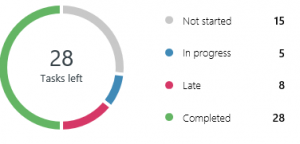
    Planner is an application for creating, assigning, and managing tasks. It is useful for collaborating among small groups.

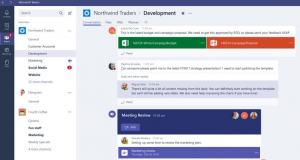
    Teams is a chat-based workspace that integrates all the people, content, and tools that the team needs to be more engaged and effective. It is useful for communicating with team members through messages that require an instant response.

    Every group has its own needs and workstyle, so selecting the best tool is important. This article highlights some of the features available in Planner and Teams.

    plannerPlanner

    • Organize your work
    • Manage tasks
      • Assign user(s)
      • Set due dates
    • Collaborate
      • Communicate with group members
      • Attach project related files
    • Monitor progress
      • Use charts to view progress
      • Get email updates

    Teams

    • Communicate with your team
      • Email
      • Chat
    • Share files
      • Store all your files and docs in one place
    • Team OneNote
    • Audio/Video Meetings
      • On-demand
      • Scheduled
    • Integrate other apps

    Still not clear what is suitable for your group? Please submit a ticket in RULhelp and help will be on the way!

  • Do not fall for phishing!

    Spam and phishing messages are pouring into our inboxes almost every day. Some of these messages cleverly mimic the look and feel, and in some cases naming conventions, of trusted sites, leading people to accept the legitimacy of the messages.

    Rutgers Connect email administrators in the Office of Information Technology have put powerful filters in place to keep the number of incoming malicious messages low, but it is impossible to completely eliminate them. The messages sneaking in past the filters entice you to click on links/attachments or to reveal confidential information about yourself (NetID and password, date of birth, SSN, etc.). Clicking on a link or opening an attachment may install malicious software on your computer, or steal the data entered in good faith to use it later for criminal gain, like illegal downloading research content the Libraries are paying for – or worse.

    Recognizing and avoiding spam/phishing messages minimizes your chances of becoming a victim. The following are some tips that will help you identify such attempts:

    • Look for spelling and grammatical errors
    • Look for suspicious links and/or the sender’s email address
    • Do not click on links in an email to connect to a website unless you are sure that the link is authentic.
    • Hover with your mouse to reveal the actual URL.
    • Do not reply.
    • Look for unusual/generic-looking requests
    • Fraudulent emails are often not personalized.
    • Be wary of emails asking for confidential information. Do not disclose sensitive information in response to an email you don’t know where it is coming from. Phishers like to use scare tactics and may threaten to disable your account or delay services until you “update certain information.”
    • Do not open attachments in any suspicious email messages.
    • Make sure you are keeping your computer’s security software up to date.
    • IIS sends out a reminder on last Wednesday of each month to download and install Windows security updates. Please be sure to install them immediately.

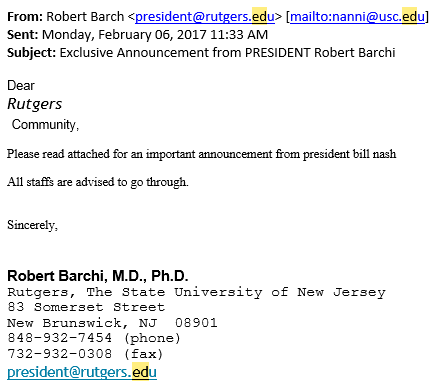
    Here is an example of a recent phishing attempt. Can you spot a few clues?

    • “i” is missing from President Barchi’s last name in the “From” address
    • Suspicious “mailto” email address
    • Unusual formatting of the greetings line
    • Poorly written message body: “president bill nash” indicates lack of attention to detail. Not capitalizing title and name gives away sloppy authoring skills.
    • Poor English: “All staffs are advised to go through.”

    If you are uncertain about the legitimacy of an email, ask your local UCS or IIS to confirm the authenticity. If you have clicked on a suspicious link, or have provided your confidential information, call IIS immediately at 848-445-5896 #7.

    Save

    Save